How to Translate Make Scenarios into n8n Workflows
At what point did we all agree that YouTube automation has to come with a subscription bill and a mild sense of captivity?
Imagine a world where AI can generate full videos, write scripts, schedule posts, pull transcripts the moment a video goes live, slice clips for TikTok, post updates, and even reply to comments, all without a platform breathing down your neck. That world exists with n8n.
n8n takes the same building logic you know from Make (Integromat) but removes the walls. Same triggers, same scenarios, just more freedom, lower cost, and the ability to plug in AI wherever you need.
Whether you’re an agency managing multiple channels, a solo creator scaling without burnout, or a brand turning YouTube into a distribution engine, n8n gives you full control over your automation, no subscriptions, no limitations, just results.
Key Takeaways
- Understand exactly what it means to “translate” a Make scenario into an n8n workflow.
- See why n8n gives you more control for YouTube automation.
- Follow a practical migration flow.
- Explore real-world n8n YouTube automation workflows.
- Learn how AI tools like Dumpling AI turn basic automation into intelligent, human-like workflows.
What Does “Translating Make Scenarios into n8n Workflows” Actually Mean?
Think of it like moving into a new workspace. You’re not changing your tools or the goal, you’re simply setting them up in a system that gives you more control.
- Make (Integromat) is like a pre-structured space. You can use what’s provided, but you work within fixed limits.
- While n8n, on the other hand, gives you a more flexible layout. You can keep things simple or extend them with logic, conditions, and AI capabilities.
You’re not rebuilding your automation from scratch, just reorganizing the same flow in a system that allows deeper control and customization.
So when we talk about translating a Make scenario into n8n, all we’re really doing is saying:
“Take what you’ve already built in Make and rebuild it smarter in n8n, using nodes instead of modules, with more freedom to tweak, customize, and even add AI logic on top.”
| Make (Integromat) Term | n8n Equivalent | In Plain English |
|---|---|---|
| Scenario | Workflow | The full automation layout |
| Modules | Nodes | Each step/action in the flow |
| Router / Paths | IF Node / Switch Node | “If this happens, do that” logic |
| Connections / Data Flow | JSON Input/Output Mapping | How data moves between steps |
| Scheduling | Cron Trigger / Webhook Trigger | When the workflow starts |
| Variables / Memory | Set Node / AI Memory / Redis | Storing and reusing values |
Why Use n8n for YouTube Automation Instead of Make?
If your workflows are small, and you don’t mind vendor lock-in or rising subscription fees, Make is okay. But if you’re serious about YouTube automation at scale, here’s why n8n is your best bet:
- Self-hosting option — You fully own your workflows, no forced pricing tiers.
- AI integration without limits — Connect OpenAI, Dumpling AI, etc., without extra billing layers.
- Better for complex YouTube operations — this includes auto-tagging, transcript AI parsing, batch publishing, and data tracking.
- Webhook-first logic — ideal for real-time triggers like “New YouTube upload” → “Auto summarize” → “Post to Twitter”.
- JSON-first data mapping — cleaner than Make’s visual bubbles, easier for versioning and scaling.
- Memory nodes for persistent context — something Make lacks without external services.
Step-by-Step Guide to Migrate Workflows from Make.com to n8n with Dumpling AI
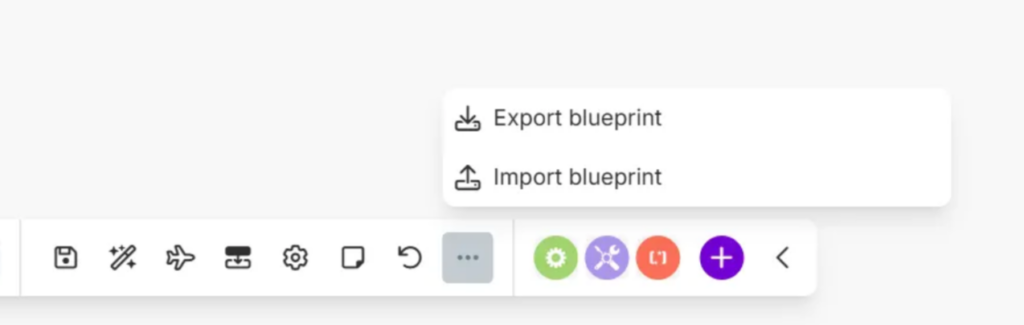
Step 1: Export Your Make.com Workflow
Action:
- Log into your Make.com account.
- Locate the workflow you want to migrate.
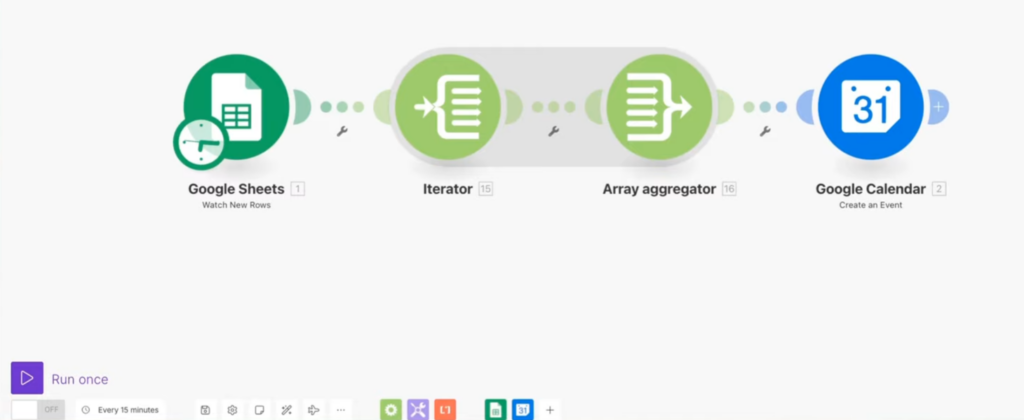
- Click on the three dots (more options) and select Export to save the blueprint as a JSON file.
Step 2: Rewrite JSON for n8n Compatibility
Action:
- Use AI tools like ChatGPT or Claude AI to rewrite the exported JSON for n8n.

- Input the JSON from Make.com and request the AI to convert it for n8n.

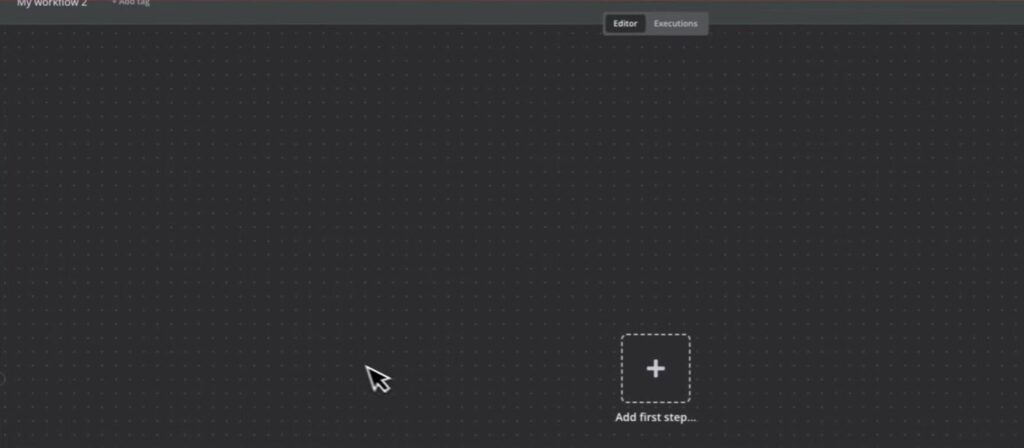
Step 3: Create a New Workflow in n8n
Action:
- Log into your n8n account.
- Click on Create New to start a new workflow.
Step 4: Import the Rewritten JSON
Action:
- Copy the rewritten JSON from the AI tool.
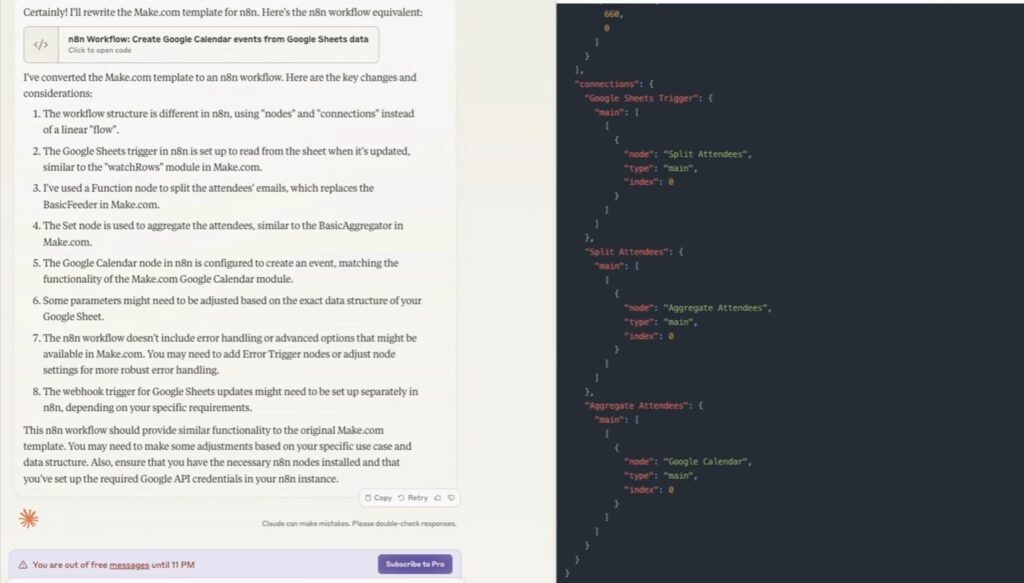
- In n8n, find the option to Import JSON and paste the copied content.
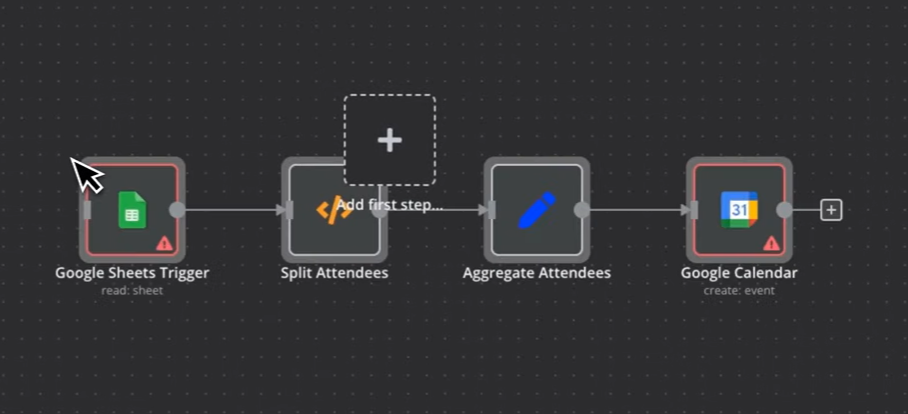
Step 5: Adjust Credentials and Settings
Action:
- Review the imported nodes and adjust any credentials or settings that may need updating.
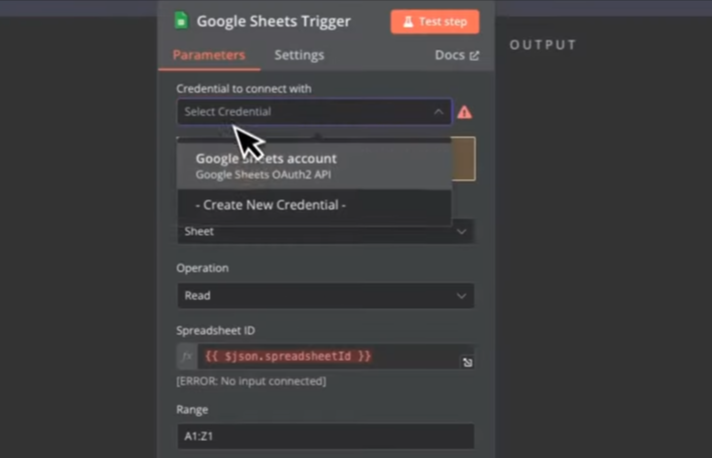
- Fill in necessary API keys or credentials where prompted.
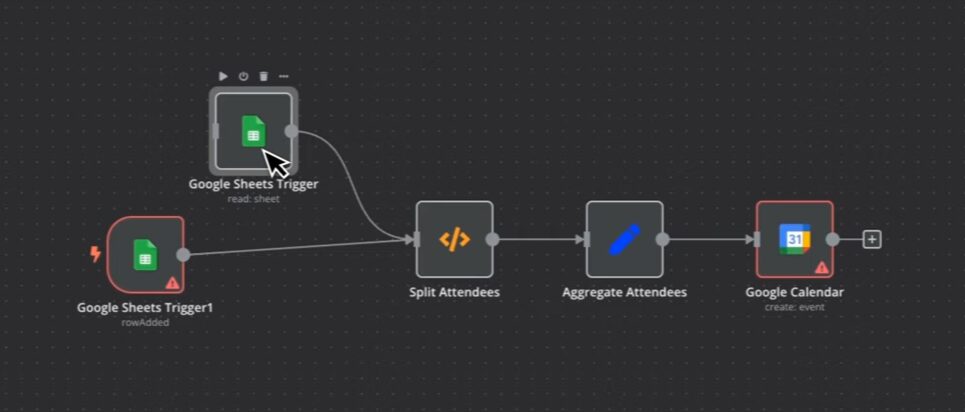
Step 6: Add Dumpling AI to Your Workflow (addon)
Action:
- Add an Advanced AI node to your workflow.
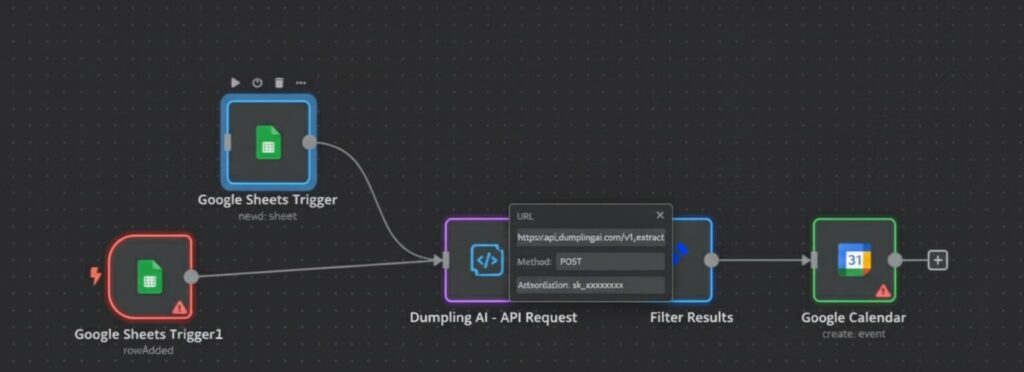
- Configure it to use OpenAI as the chat model and connect your OpenAI credentials.
- Optionally link the Dumpling AI node to handle specific tasks or queries within your workflow.
Step 7: Add Trigger Nodes
Action:
- If the imported workflow lacks triggering events, add a suitable trigger node (e.g., a webhook).
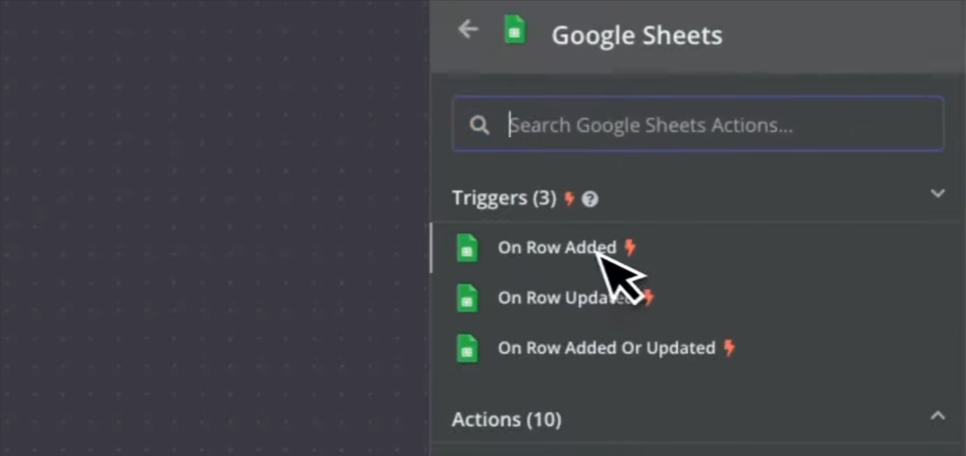
- Configure the trigger to initiate the workflow.

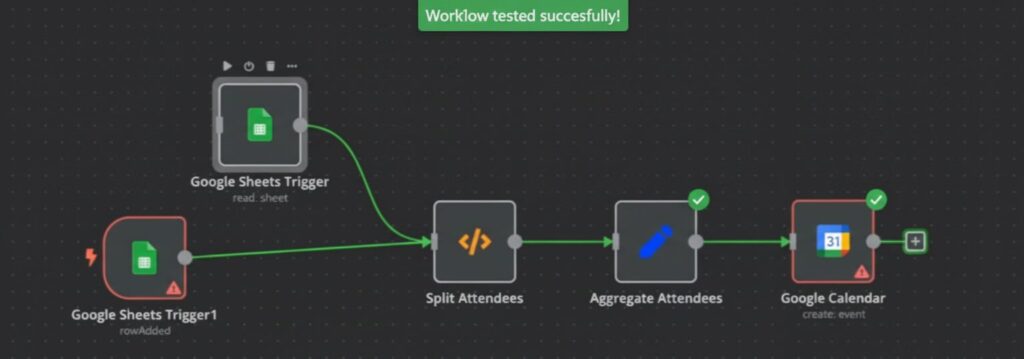
Step 8: Test Your Workflow
Action:
- Run tests to ensure that all nodes in the workflow are functioning correctly.

- Check for errors and adjust as necessary.
Step 9: Backup Your n8n Workflows
Action:
- Once confirmed that the workflow is operational, create backups to safeguard your setup.
The Best Part
By using Dumpling AI as your automation translator, you save hours of manual rebuilding time.
You gain:
- A clean, ready-to-import n8n version of your Make.com scenario.
- Automatic fallback nodes for unsupported integrations.
- A deeper understanding of how n8n structures automations.
You don’t just migrate, you upgrade your automation setup.
Making Your YouTube Automation Smarter with AI
When you integrate AI into your n8n workflow, each part plays a distinct role. n8n manages the structure, deciding when an action triggers, how data flows, and what happens next. AI tools like Dumpling AI (or ChatGPT) provide the intelligence layer, generating the actual content, tone, and responses.
This turns a basic automation into something that feels more human and adaptive rather than purely mechanical. For example, the moment a new YouTube video goes live, n8n can detect it and pass the details to Dumpling AI, which then generates an SEO-ready description, multiple TikTok or Shorts captions, a Twitter thread, and keyword tags: all automatically, without any manual copy-pasting.
Real-World Use Cases: YouTube Automation with n8n
Here are two real-world use cases built on n8n that show just how far you can push YouTube automation when AI enters the workflow.
Automated Content Repurposing: From One YouTube Video to Multi-Platform Posts
Inspired by how Syrom documented his end-to-end n8n automation journey in this Medium tutorial, creators can now use n8n as a content redistribution engine, and not just a trigger tool.
In a similar setup, once a new video goes live:
- n8n detects the upload and fetches metadata + transcript
- The transcript is sent to Dumpling AI
- AI generates:
- 5 Tweet/X threads
- 2 LinkedIn hooks
- A newsletter intro draft
- Then all assets are pushed instantly for scheduling
Smart YouTube Comment Reply Draft System with Tone Detection
Similar to how Ashraf Ali showcased AI-assisted Make → n8n conversion logic in his article. This workflow goes a step further by not just converting logic but, enhancing it with AI tone understanding.
- New YouTube comment detected via API.
- n8n captures comment + username.
- Using Dumpling AI to analyze sentiment (question, appreciation, confusion, criticism)
- A reply draft is generated using a respectful, creator-friendly tone
- Draft is delivered to WhatsApp or Google Sheets for one-tap approval
This smart automation has taken care of manually replying to every comment, as all you have to do is review and adjust the AI-drafted responses to your preference, and you get to keep engagement high without burnout.
Common Migration Issues (And How to Fix Them Fast)
| Problem | Solution in n8n |
|---|---|
| Scenario breaks due to loops | Use Split in Batches instead of full loops |
| Webhook timeouts | Enable “Respond Immediately” in Webhook Node |
| Lost data mapping | Activate “Keep Only Set Data” clarity mapping |
| Memory of processed videos is lost | Use DataStore Node or Redis to store the last video ID |
| Too many Make “routers” | Use IF / Switch Nodes in a cleaner visual layout |
Conclusion
Migrating your Make scenarios into n8n isn’t just a matter of switching tools. It’s moving from a platform-controlled automation to your own customizable automation infrastructure. With n8n, your YouTube automation becomes more intelligent, scalable, and AI-boosted, with access to workflows that Make users often pay premium tiers to achieve.
FAQs
1. Can I directly import my Make scenario into n8n?
No direct import button exists. You translate logic by recreating the modules as nodes. The process is linear once you map functions.
2. Is n8n better for YouTube automation than Make?
Yes, especially if you want AI integration, webhook triggers, and cost-free scaling.
3. Can I host n8n automation for YouTube myself?
Yes. You can self-host n8n via Docker or use n8n Cloud for simplicity.
4. Does n8n support YouTube transcript automation?
Yes, via HTTP Node or AI transcription + automation plugins.
5. Can I combine WhatsApp automation + YouTube automation in one n8n workflow?
Absolutely. n8n thrives on cross-platform workflows, YouTube update triggers → WhatsApp notifications → AI summary generation.


